Schulz Portacrunch 424 Manual
Contents
1. Introduction
Schulz Portacrunch 424 recreates the character and response of the gain stages of a cassette four-track recorder, built using our True Circuit Simulation technology. Every resistor, capacitor, and transistor in the original circuit has been modeled at the component level, capturing the warm saturation, gentle compression, and lo-fi texture of real tape. It is available in all major plug-in formats as well as a standalone application.
The standalone version provides a quick way to add cassette warmth to any signal without opening a DAW — ideal for sketching ideas or late-night bedroom sessions.
You can evaluate Schulz Portacrunch 424 free of charge for 14 days by clicking the Download button here.
After downloading, run the installer and follow the on-screen instructions.
Authentication is straightforward. Additional information on the process can be found here.
2. Overview
Preset Panel
The Preset Panel lets you load and store presets. Alt-Click the drop-down menu to access additional options such as Copy, Paste, and Browse.
You can replace the Init Preset with your own default setup by holding CMD+OPTION (Mac) or CTRL+ALT (Windows) while clicking the Save button.
An asterisk next to the preset name indicates that the preset has been modified. The plug-in ships with a factory preset bank to get you started.
Generate
The magic wand icon creates an entirely new preset inspired by the style of the current factory preset — something original and never heard before.
About
Click the schulz.audio logo to open the About screen. This screen also includes an option to manage your license.
Circuit Controls
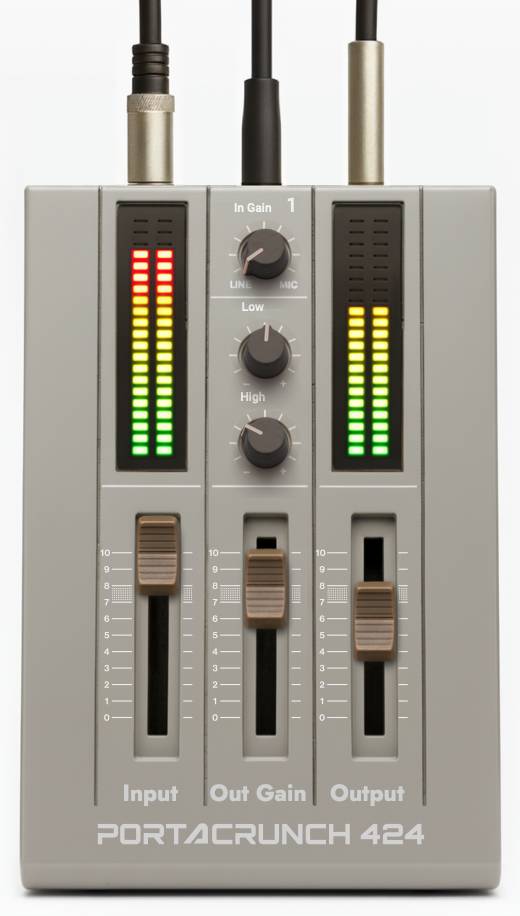
These knobs and faders represent the controls of the original cassette four-track’s gain stage circuit. Adjust them to shape the amount and character of tape saturation.
In Gain
Controls how hard the signal is pushed into the gain stage circuit — the core of the tape saturation character. At lower settings the circuit adds subtle warmth and gentle compression; higher values drive it into thicker, grainier saturation. This is the primary tone-shaping control.
Low
Adjusts the low-frequency response of the gain stage. The original circuit has a characteristic low-end behaviour that changes with the drive level — this control lets you shape that response to taste.
High
Adjusts the high-frequency response of the gain stage. Higher settings retain more top-end presence and air; lower settings produce a darker, more rolled-off cassette character.
Out Gain
Controls the output level of the gain stage itself, independently of the final Output fader. Use it to set how much processed signal passes through, and to balance the circuit’s contribution to the overall level.
Mix
The Mix control blends the unprocessed (dry) signal with the processed one, enabling parallel processing. Mixing in some dry signal with heavier saturation settings retains transient clarity while adding tape colour.
Input Level
Displays the input signal level on a logarithmic decibel scale. For realistic results, aim for input levels between 150 mV and 300 mV.
Higher input levels push the circuit harder — similar to how a louder signal saturates real tape. Both the circuit controls and the Input level affect saturation; use them creatively. If it sounds good, it’s right.
Output Level
Controls the post-gain level, making it easier to match output volume with other signal sources.
Bypass
Bypasses the entire effect, including the cabinet and room simulations.
Routing
Switches between Mono and Dual (Stereo) processing.
For typical mono instruments such as guitar or vocals, use Mono mode to reduce CPU load.
For stereo sources, select Dual mode to preserve the stereo image.
Oversampling & Aliasing
Portacrunch 424 uses a detailed non-linear circuit simulation. Non-linearity adds harmonic content — new overtones that can extend beyond the current sample rate, which may cause aliasing.
In most cases aliasing artefacts are inaudible, masked by the main signal or other elements in a mix. If you notice unwanted artefacts on high-frequency material, increase the oversampling rate. Higher oversampling reduces aliasing but increases CPU usage.
Cabinet Simulation
Enables or disables the speaker cabinet emulation. Choose from a selection of boutique cabinet models.
You can assign different cabinets to the left and right channels to create a wider, more natural stereo sound.
Room
Blends in room ambience captured from near and far microphone positions.
This adds air and depth, giving the sound a more natural recorded character.
3. Conclusion
Thanks for your interest in our plug-ins. If you encounter any problems or would like us to model other circuits and machines, please don’t hesitate to drop us a line.
Happy recording,
— Ben